Friday, June 6, 2008

Upload Multiple Files With ASP.NET

Out of the box, you can easily upload files using the ASP.NET FileUpload control. However there are times when the design calls for the ability to upload multiple files. In my example, I use a single FileUpload control along with a GridView for layout and some Session state to store the posted files. You can copy and paste the code below to accomplish this task.

Design

MultipleUpload

ASP.NET

<%@ Page Language="C#" AutoEventWireup="true" CodeFile="Default.aspx.cs" Inherits="_Default" %>
<!DOCTYPE html PUBLIC "-//W3C//DTD XHTML 1.0 Transitional//EN" "http://www.w3.org/TR/xhtml1/DTD/xhtml1-transitional.dtd">
<html xmlns="http://www.w3.org/1999/xhtml">
<head runat="server">
    <title>Untitled Page</title>
    <script language="javascript" type="text/javascript">
        function SetFileGridIndex(index)
        {
            var myControl = document.getElementById('<%= fileGridIndex.ClientID %>');
            myControl.value = index;
        }
    </script>
</head>
<body>
    <form id="form1" runat="server">
    <div style="font-family: Verdana; font-size: small; text-align:center; width:100%;">
        <asp:GridView ID="fileGrid" AutoGenerateColumns="False" ShowFooter="true" BorderColor="Black"
            BorderWidth="1px" runat="server" OnRowCommand="fileGrid_RowCommand" GridLines="None"
            OnRowDeleting="fileGrid_RowDeleting">
            <Columns>
                <asp:BoundField DataField="Key" HeaderText="Files To Upload" />
                <asp:TemplateField ShowHeader="False">
                    <ItemTemplate>
                        <asp:LinkButton ID="LinkButton1" runat="server" CausesValidation="False" CommandName="Delete"
                            Text="Delete" OnClientClick='<%# Eval("Key", "SetFileGridIndex(\"{0}\");") %>'></asp:LinkButton>
                    </ItemTemplate>
                    <FooterTemplate>
                        <asp:Button ID="Upload" runat="server" Text="Upload" CommandName="Upload" />
                    </FooterTemplate>
                </asp:TemplateField>
            </Columns>
        </asp:GridView>
        <asp:HiddenField ID="fileGridIndex" runat="server" />
        <div id="fileList" runat="server">
        </div>
        <asp:FileUpload ID="fileUpload" runat="server" />
        <asp:Button ID="AddFile" runat="server" Text="Add" OnClick="AddFile_Click" Height="20px" />
        <br />
    </div>
    </form>
</body>
</html>

Code Behind:

using System;
using System.Collections;
using System.Collections.Generic;
using System.Configuration;
using System.Data;
using System.IO;
using System.Linq;
using System.Web;
using System.Web.Security;
using System.Web.UI;
using System.Web.UI.HtmlControls;
using System.Web.UI.WebControls;
using System.Web.UI.WebControls.WebParts;
using System.Xml.Linq;

public partial class _Default : System.Web.UI.Page
{
    private Dictionary<string, HttpPostedFile> postedFiles;
    public Dictionary<string, HttpPostedFile> PostedFiles
    {
        get
        {
            return ((Dictionary<string, HttpPostedFile>)Session["PostedFiles"]);
        }
        set
        {
            Session["PostedFiles"] = value;
            postedFiles = value;
        }
    }

    protected void Page_Load(object sender, EventArgs e)
    {
        if (!Page.IsPostBack)
        {
            Session["PostedFiles"] = new Dictionary<string, HttpPostedFile>();
        }
    }

    public void LoadData()
    {
        fileGrid.DataSource = PostedFiles;
        fileGrid.DataBind();
    }

    protected void AddFile_Click(object sender, EventArgs e)
    {
        if (!PostedFiles.ContainsKey(Path.GetFileName(fileUpload.PostedFile.FileName)))
        {
            PostedFiles.Add(Path.GetFileName(fileUpload.PostedFile.FileName), fileUpload.PostedFile);
            LoadData();
        }
    }

    protected void fileGrid_RowCommand(object sender, GridViewCommandEventArgs e)
    {
        switch (e.CommandName)
        {
            case "Delete":
                string fileName = fileGridIndex.Value;
                PostedFiles.Remove(fileName);
                LoadData();
                break;
            case "Upload":
                foreach (HttpPostedFile postedFile in PostedFiles.Values)
                {
                    postedFile.SaveAs(@"c:\\temp\" + Path.GetFileName(postedFile.FileName));    //CHANGE ME
                }
                PostedFiles = new Dictionary<string, HttpPostedFile>();
                LoadData();
                break;
        }
    }
    protected void fileGrid_RowDeleting(object sender, GridViewDeleteEventArgs e)
    {

    }
}

Friday, May 30, 2008

Troubleshoot Web Pages with the Web Development Helper tool

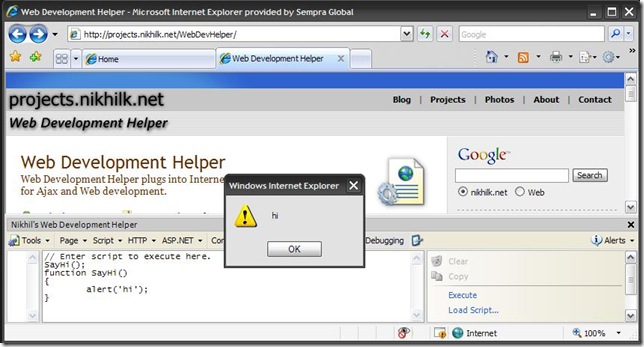
One of my favorite tools for development is Nikhil Kothari's Web Development Helper. This is an IE Add-On that allows you to do things like navigate through the page DOM, capture screenshots, and examine ASP.NET view state. Of all the features, my favorite is probably the Script Console feature which allows you to execute client side JavaScript on any page.

Hello World

For example, the following is a Hello World example that executes the alert function.

Source:

SayHi();
function SayHi()
{
alert('hi'); //Optionally, you can just use this one liner.
}

WebDevelopmentHelper

Don't Save Your Page Script and Refresh the Page!

Where this get's more interesting is when you need to troubleshoot a client side script problem, perhaps an AJAX related issue. What's really nice about this is that you don't need to save your page script and refresh the page every time you want to troubleshoot your JavaScript.

Run Existing Page JavaScript

Another great way to use this tool is to run existing JavaScript from a page. For example, SharePoint 2007 uses JavaScript extensively. If you open the source (View --> Source in IE) from your browser, you can look at the page source and find snippets like the following:

SharePointJavaScript

You can then copy and paste this snippet into Web Development Helper Script Console and click the Execute link. As you can see this opens the page in Edit mode.

Source:

OpenSharePointEditMode();
function OpenSharePointEditMode()
{
window.location = 'javascript:MSOLayout_ChangeLayoutMode(false);';
}

SharePointWebDevelopmentHelper

Wednesday, May 7, 2008

Visual Studio - Object is in a zombie state.

I just got this message during some ASP.NET debugging on Visual Studio 2008. Since Microsoft is doing it, perhaps I'll start adding these types of messages. ;)

VSZombieState 

Microsoft Visual Studio

Cannot detach from one or more processes:

[4742] WebDev.WebServer.EXE: Object is in a zombie state.

Do you want to terminate them instead?

Monday, April 28, 2008

.NET 3.0 - Use Extension Methods to Simplify Your Code!

How would you like to have syntax like this that is fully IntelliSense capable?

List<string> list = new List<string>();
list.Add("john@email.com");
list.Add("joe@email.com");
list.Add("james@email.com");
Console.WriteLine(list.ToDelimitedString(","));
////or this...
string emailAddress = "test@test.com";
Console.WriteLine(emailAddress.IsEmailValid().ToString());

Now with the new .NET 3.0 Extension methods it is extremely trivial:

  1. Create a non-generic static class. This will contain the extension methods.
  2. Create a static method where the first parameter uses the type you would like to extend. It must also be prefixed by the "this" keyword. Note: this can be any type, including those that you create yourself.
  3. Simply call the extension method from an instantiated type. You will see that the extension method is added to the list of IntelliSense members.

using System;
using System.Collections.Generic;
using System.Linq;
using System.Text;

namespace TestConsoleApp
{
    class Program
    {
        static void Main(string[] args)
        {
            string sampleEmailAddresses = @"john@email.com,jane@email.com,josh@email.com,jill@email.com";
            List<string> emailAddresses = sampleEmailAddresses.Split(new char[] { ',' }).ToList<string>();
            Console.WriteLine(emailAddresses.ToDelimitedString(",")); //Calling the extension method
            Console.Read();
        }
    }

    public static class Utils //Make sure this is static
    {
        public static string ToDelimitedString(this List<string> strings, string delimiter) //Defining the first parameter with the this keyword
        {
            return string.Join(delimiter, strings.ToArray());
        }
    }
}

For a more complete discussion, check out Scott Guthrie's blog:
http://weblogs.asp.net/scottgu/archive/2007/03/13/new-orcas-language-feature-extension-methods.aspx

Sunday, March 30, 2008

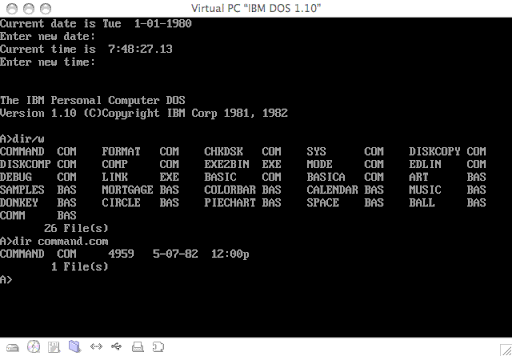
The Raconteurs Home Page - Sweet, Sweet DOS 1.1 User Interface

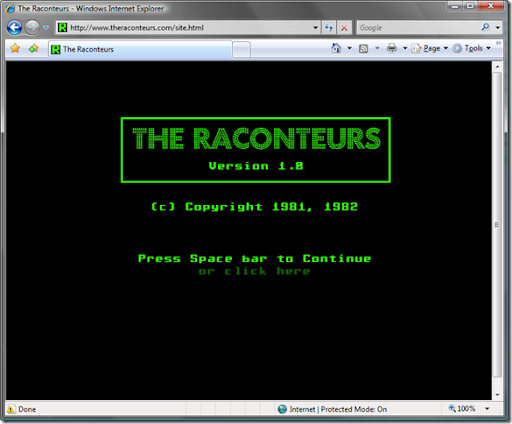
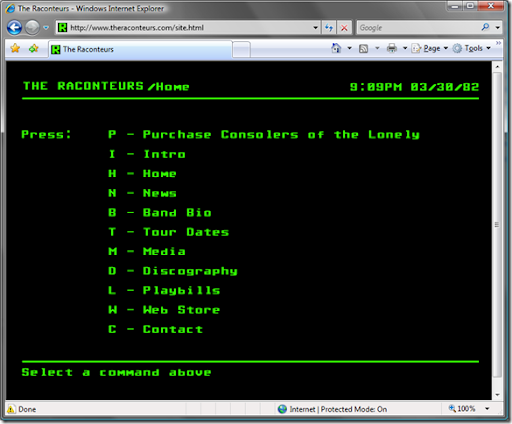
I usually limit myself to things purely technical on this blog, but this was a little cool to pass up and is somewhat technical in nature. The Raconteurs have created their web site using a user interface reminiscent of something circa the early 80's. Looking at the page source, it is done mostly using Macromedia Flash. Disregarding the evil splash page, JavaScript errors, and possible copyright infringements (oh my!), there is truly something wonderful about this minimalist approach. What's the point of being so pretentious when you are only providing basic information? Far too many web sites are bloated with ubiquitous links and ads, and provide for a truly miserable user experience. Needless to say, it would have been way cooler (and no doubt, achievable) if they could have done this using only HTML, JavaScript, and CSS. By the way, if you haven't already, check out the their new album. This is true and unadulterated rock n' roll.

Splash Page

image

Home Page

image

DOS 1.10 - Notice the dates 1981, 1982.

image

Thursday, March 6, 2008

Get any color on the screen quickly with PkColorPicker

This is a nice light utility that allows you to find colors by hovering over them using cross hairs. You can then copy the RGB hexadecimal values and paste them. This is much better than having to open something like Photoshop which takes forever an eats up all your processing power.

image

Monday, March 3, 2008

Enable Linq for SharePoint 2007

1.) Update the web.config with the Linq assemblies by inserting the following tags under <system.web><compilation>:

<add assembly="System.Core, Version=3.5.0.0, Culture=neutral, PublicKeyToken=B77A5C561934E089" />

<add assembly="System.Web.Extensions, Version=3.5.0.0, Culture=neutral, PublicKeyToken=31BF3856AD364E35" />

<add assembly="System.Xml.Linq, Version=3.5.0.0, Culture=neutral, PublicKeyToken=B77A5C561934E089" />

<add assembly="System.Data.DataSetExtensions, Version=3.5.0.0, Culture=neutral, PublicKeyToken=B77A5C561934E089" />

2.) Update the web.config with the Linq tag prefixes by inserting  following tags under <system.web><pages><controls>:

<add tagPrefix="asp" namespace="System.Web.UI" assembly="System.Web.Extensions, Version=3.5.0.0, Culture=neutral, PublicKeyToken=31BF3856AD364E35" />

<add tagPrefix="asp" namespace="System.Web.UI.WebControls" assembly="System.Web.Extensions, Version=3.5.0.0, Culture=neutral, PublicKeyToken=31BF3856AD364E35" />

3.) Reset IIS on the SharePoint server.